Comfort
Typing posture and ergonomics: a comfortable set-up
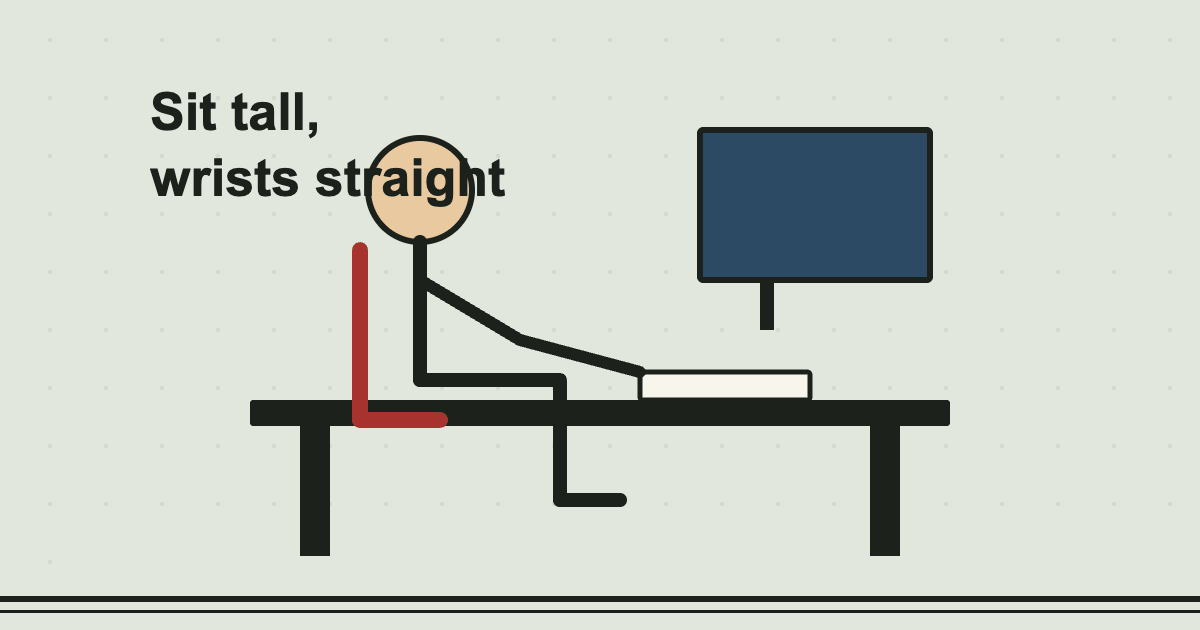
Comfort and speed go together. A set-up that lets your hands and shoulders relax lets you type longer, with fewer mistakes. These are general tips, not medical advice.
Chair and desk
- Sit with your feet flat on the floor, or on a footrest, with your knees at roughly right angles.
- Support your lower back. Sit back in the chair rather than perching on the edge.
- Keep the keyboard at a height where your forearms are about level with the floor and your elbows are near your sides, bent at around 90 degrees.
Screen
Put the top of the screen at about eye level, an arm's length away, so you can look at it without tilting your head down or up. If you use a laptop for long periods, a stand and a separate keyboard make a big difference.
Hands and wrists
- Keep the wrists straight, not bent up or down, and let them float rather than resting heavily on the desk.
- Move the fingers, not the whole arm. Use a light touch; you do not need to bang the keys.
- Keep the thumbs relaxed above the space bar.
- If your keyboard has feet, try it flat or with the feet folded. A lot of people find a negative or flat tilt is more comfortable.
Breaks
Take a short break about every half an hour. Stand up, stretch your fingers and shoulders, and look at something far away to rest your eyes. A minute is enough.
The keyboard itself
A keyboard that works poorly makes you type harder. If a key sticks, or does not always register, check it on the keyboard tester and clean under the keycap or replace the keyboard.
When to ask for help
Tingling, numbness, or pain in the hands, wrists, arms or neck that does not go away is a reason to see a doctor or an occupational health adviser. Do not type through pain. This site cannot give medical advice.
Read next
- What is a good typing speed?6 min read
- How typing speed is calculated5 min read
- How to learn touch typing, step by step7 min read